
How to Remove an Accessibility Overlay from Shopify (and What to Fix Next)
Published · 10 min read
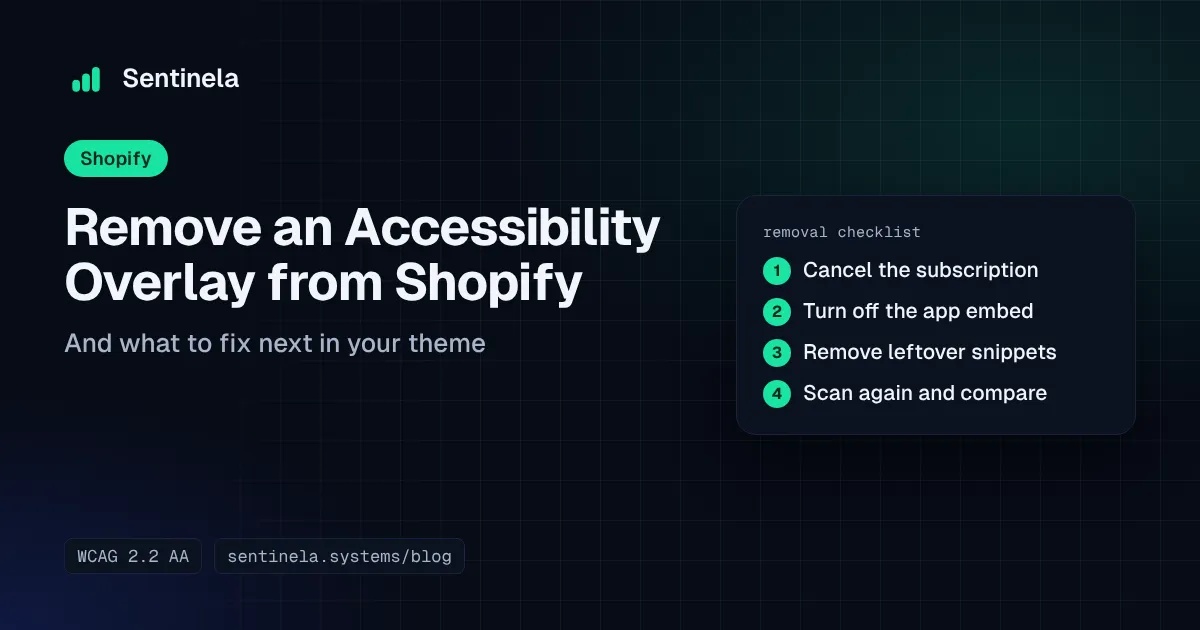
To remove an accessibility overlay from Shopify, uninstall the app from Settings > Apps in your Shopify admin, turn off any leftover app embed in the theme editor, and check theme.liquid for a script tag if the widget was added by hand. Cancel the vendor subscription separately if it isn't billed through Shopify. Then confirm the widget no longer loads, and start fixing the theme issues the overlay was sitting on top of.
This article walks through each step, with notes for accessiBe, UserWay, AudioEye and EqualWeb where their own documentation covers removal.
Is removing it the right call?
That's your decision. Some merchants keep a widget; others remove it because they want to fix the theme code itself, or because the widget doesn't fit how they want to work on accessibility. Still deciding? Our overlay vs code-fix comparison sets the main services side by side. We've set out our view in Why an overlay widget doesn't fix your theme, so we won't repeat it here.
Either way, what matters is what's in the theme, so it helps to measure before and after.
Before you remove anything
1. Run a baseline scan
Scan your store with the widget still installed, and save the result. After removal you can compare the two and see what the theme looks like on its own. A free Sentinela scan checks your home page and two key pages (usually a product page and the cart) and emails the result in minutes. An automated check is not an audit, but it gives you a fair before-and-after comparison.
2. Record your widget settings
Take screenshots or export anything you configured in the vendor dashboard: colors, position, language, any custom rules. Shopify's own help center recommends exporting any data you need before removing an app (Shopify: Uninstalling apps).
3. Check how you're billed
Accessibility apps can be billed two ways:
- Through Shopify. Recurring app charges appear on your Shopify bill. Uninstalling the app stops future billing cycles, but a charge that has already been generated may still appear on your next invoice. Shopify says refunds for third-party app charges are at the developer's discretion (Shopify: App charges).
- Directly by the vendor. Some apps bill outside Shopify. Shopify states that uninstalling the app from your admin doesn't cancel external charges; you need to cancel those with the developer (Shopify: Uninstalling apps).
Check your Shopify bill and card history to see which applies. If billed through Shopify, uninstall before the next billing cycle starts.
4. Replace any vendor-hosted accessibility statement
Some overlay services provide or host an accessibility statement and link to it from the widget. Once the widget is gone, that link goes too, and the statement may describe a tool you no longer use. Write your own statement and publish it as a Shopify page, linked from your footer. Describe what you've tested, known issues, and how customers can contact you. Sentinela's Monitoring Pro plan and audits include a draft statement you can edit.
5. Duplicate your theme
Before you edit code, make a backup. In Online Store > Themes, open the actions menu (the "…" button) on your theme and choose Duplicate. The copy appears as "Copy of [theme name]" (Shopify: Duplicating themes). Do your code clean-up on the copy, preview it, then publish it.
Step by step: removing the overlay in Shopify admin
Step 1: Uninstall the app
- In your Shopify admin, go to Settings > Apps.
- Find the accessibility app, click the Menu button next to it, then Uninstall.
- Optionally choose a reason, then confirm.
Shopify warns that "some apps add code to your online store theme that isn't automatically removed when you uninstall the app", and suggests checking the app's listing or contacting the developer for extra clean-up steps (Shopify: Uninstalling apps). The next steps cover that.
Step 2: Turn off the app embed
Many apps load their widget through a theme app embed. Merchants activate and deactivate these in the theme editor (Shopify: Apps in themes).
- Go to Online Store > Themes and click Customize (labeled Edit theme in some admin versions) on your live theme.
- Click the App embeds icon in the left sidebar.
- Switch off the accessibility app's embed, then click Save.
If the app is already uninstalled, its embed usually disappears from this list. If it's still there, switch it off.
Step 3: Look for a hand-added script tag
If the widget was installed by pasting a snippet (common for manual installs), it lives in your theme code. Several vendors' Shopify install guides tell you to paste the code into layout/theme.liquid just before the closing </body> tag (AudioEye: Install on Shopify; EqualWeb: Shopify install).
On your duplicated theme:
- Click the "…" menu > Edit code.
- Open
layout/theme.liquid. - Search the file (Ctrl+F / Cmd+F) for the vendor's name and for the domain in the snippet you originally pasted.
- Delete the whole
<script>block, including any configuration object that belongs to it.
A leftover block typically looks something like this:
<!-- Accessibility widget: remove this whole block -->
<script>
  (function () {
    var s = document.createElement('script');
    s.src = 'https://widget-vendor.example/widget.js';
    s.async = true;
    document.body.appendChild(s);
  })();
</script>
Shopify uses the same approach for removing other hand-added code: open theme.liquid, delete the code, and save (Shopify: Meta pixel removal).
Step 4: Search the rest of the theme for snippets
Apps and installers sometimes add files under snippets/ and reference them from layouts or sections:
{% render 'accessibility-widget' %}
Search the code editor for the vendor name and for render or include tags pointing at an unfamiliar snippet. Remove the reference first, preview the theme, then delete the snippet file if nothing else uses it. If something breaks, Shopify lets you roll back a file to an earlier version (Shopify: Editing theme code).
When the preview looks right, publish the duplicate.
Step 5: Check in a clean browser
Open your store in a private/incognito window, so cached files and old widget preferences don't confuse the result. Check the home page, a collection, a product page and the cart.
Vendor-specific notes
These notes cover only what each vendor documents. Menu names change, so check the linked page before you start.
accessiBe. accessiBe's help center says uninstalling accessWidget requires removing its installation script (usually in the footer or just before </body>) from every page where it appears, and that uninstalling does not cancel your subscription (accessiBe: How to uninstall accessWidget). To cancel a license it bills directly, accessiBe describes going to My Licenses, selecting the license, then Plan and payments > Manage > Cancel license. It asks for notice before renewal (30 days for yearly plans, 15 for monthly) (accessiBe: How to cancel a license). If you installed it as a Shopify app, also uninstall it in Shopify admin as above.
UserWay. UserWay's Shopify guide says you can remove the app yourself from the Apps area of your Shopify admin, and to contact UserWay support if that doesn't work (UserWay: Shopify installation). Hiding the widget from the widget's own menu only affects that visitor's browser; it doesn't uninstall anything (UserWay: Move or hide the widget).
AudioEye. AudioEye's Shopify guide installs its Site Code in theme.liquid before </body> (AudioEye: Install on Shopify), so remove it from there (Step 3). To cancel, AudioEye says to log in to the AudioEye Platform, open site management and choose Cancel subscription; it takes effect at the end of the billing period. Enterprise customers contact their account manager; customers who bought through a partner contact that partner (AudioEye: Canceling a subscription).
EqualWeb. We couldn't find a published uninstall guide. EqualWeb's Shopify install guide places the code in theme.liquid near the end of the file (EqualWeb: Shopify install), so Step 3 applies. Contact EqualWeb support to confirm cancellation.
How to verify it's gone
- View source. Right-click > View page source (or Ctrl+U / Cmd+Option+U) and search for the vendor's name or domain. Note this shows the HTML the server sent, not scripts added later by JavaScript.
- DevTools Network tab. Open DevTools (F12), go to Network, reload the page, and type the vendor's name or domain into the Filter box. The filter matches text in the request URL, domain or hostname (Chrome DevTools: Network features reference). No matching requests across a few page types is a good sign.
- Lighthouse. Run a Lighthouse accessibility audit in DevTools. Lighthouse's accessibility checks are powered by axe-core. Google notes that a perfect score of 100 does not mean the audited page is accessible, and that manual testing is still important (Chrome: Lighthouse accessibility score).
- Re-scan. Run your second Sentinela scan and compare it with the baseline. The comparison shows issues as New, Persisting or Fixed.
What to fix next
With the widget gone, your scan shows what the theme itself does. These are the issues we see most often on Shopify themes, in a sensible order to tackle them. Our post on ten common accessibility issues on Shopify and WooCommerce has code fixes for each.
- Product image alt text. Missing or unhelpful alt text on product and collection images. Fix it in the product admin. See How to write alt text for product images.
- Form labels. Newsletter, search, contact and quantity fields that rely on placeholder text instead of a real
<label>. - Button and link names. Icon-only buttons (cart, search, menu, close, carousel arrows) with no accessible name. Add visible text or an
aria-label. - Keyboard focus. Focus outlines removed in CSS, menus or drawers that can't be reached or closed with a keyboard, and focus that ends up hidden behind sticky headers.
- Color contrast. Light gray text, sale badges and buttons over images that fall below WCAG contrast ratios.
- Cart drawer. A common trouble spot: focus not moving into the drawer when it opens, no way to close it with Escape, and quantity or remove buttons without names. Our Shopify cart drawer guide has the tests and code.
Work on a duplicate theme, preview, and re-scan after each batch so you can see issues move from Persisting to Fixed. Automated checks don't catch everything; keyboard and screen reader testing of the path from product page to checkout is still worth doing.
If you'd rather have the work done for you, Sentinela's remediation fixes the issues found in an audit on a preview theme. Nothing is published until you approve it, and production is re-scanned afterwards with a before-and-after report. Shopify runs its own checkout, so issues found there are reported but not changed.
Check your own store
A free scan tests your home page and two key pages against WCAG 2.2 AA with automated checks. Run it before and after removing your overlay to see where your theme stands. Get a free scan
Sources
- Shopify Help Center: Uninstalling apps
- Shopify Help Center: App charges on your invoice
- Shopify Help Center: Apps in your theme (app embeds)
- Shopify Help Center: Duplicating themes
- Shopify Help Center: Editing theme code
- Shopify Help Center: Meta pixel (removing code from theme.liquid)
- accessiBe Help Center: How to uninstall accessWidget (vendor)
- accessiBe Help Center: How to cancel an accessWidget license (vendor)
- UserWay: Shopify installation tutorial (vendor)
- UserWay Help: Move or hide the widget (vendor)
- AudioEye Help: Install AudioEye on a Shopify site (vendor)
- AudioEye Help: Canceling a subscription (vendor)
- EqualWeb: Shopify installation guide (vendor)
- Chrome for Developers: Network features reference
- Chrome for Developers: Lighthouse accessibility score